How to Connect NotebookLM to Zotero (BibTeX Export Guide)
NotebookLM does not connect directly to Zotero. The practical workaround is BibTeX: export the sources in your notebook as a .bib file, then import that file into Zotero. This guide shows both the manual route and the faster browser-extension route.
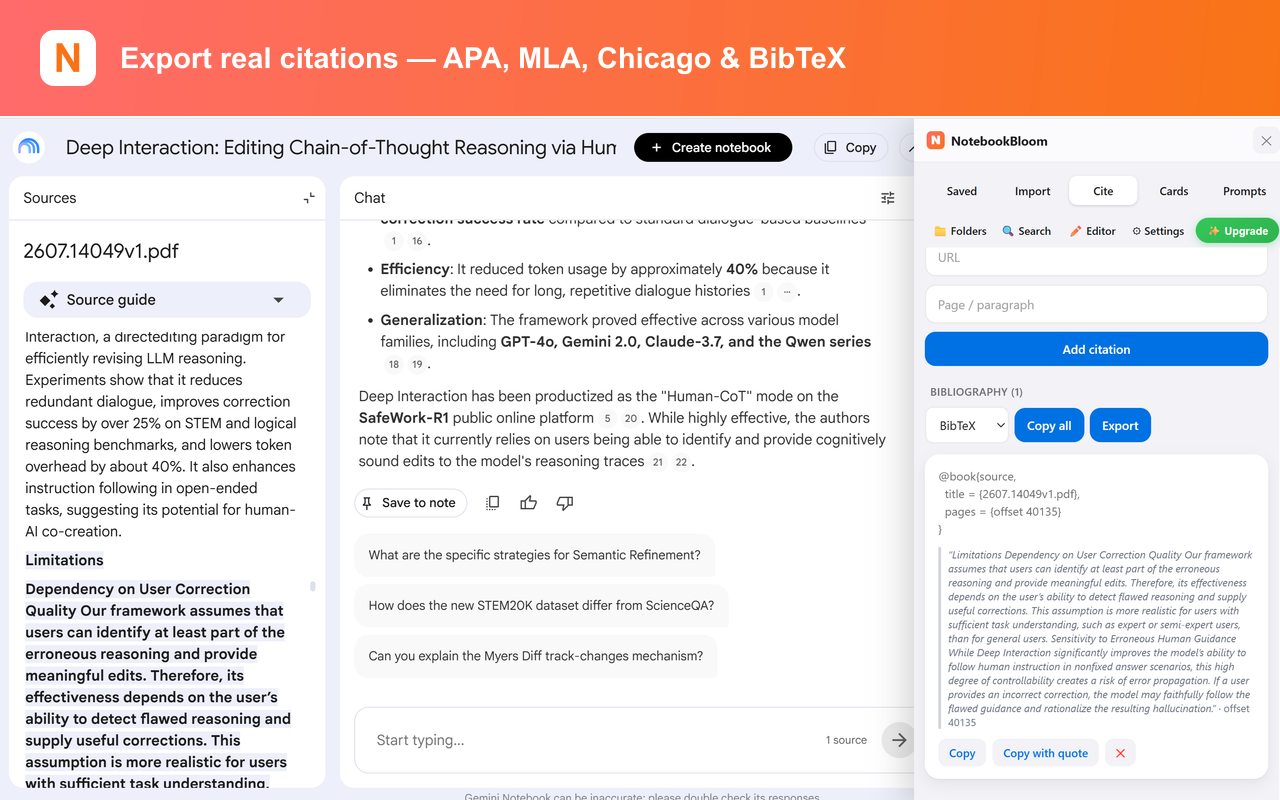
I keep my whole reading life in Zotero. So when I started leaning on NotebookLM for research, I assumed there'd be some way to push sources over — a button, an export, a "send to Zotero" thing. There isn't. Not one. You collect a pile of sources inside a notebook and then they just… live there.
NotebookLM — Google renamed it Gemini Notebook in July 2026, same app — has no Zotero integration, no Mendeley integration, no reference-manager export of any kind. This trips up a lot of people, because reading and citing usually happen in the same tool, and here they don't. Your sources are in one place and your bibliography lives in another, and nothing connects them.
The bridge, once you see it, is obvious: BibTeX. Zotero imports it. Mendeley imports it. EndNote, RefWorks, Papers — they all read a .bib file. So the real question isn't "how do I export to Zotero," it's "how do I get my NotebookLM sources into BibTeX." Do that and Zotero takes it from there.
Is there a NotebookLM–Zotero integration?
No — there is no NotebookLM Zotero integration, and none is planned that Google has announced. NotebookLM (Gemini Notebook) doesn't connect to Zotero, Mendeley, EndNote or any reference manager, in either direction: you can't pull a Zotero library into a notebook, and there's no "export to Zotero" going out. So when people search for a "NotebookLM Zotero integration," the honest answer is that the integration doesn't exist — but the BibTeX bridge below does the same job in practice: it moves your whole source list from NotebookLM into Zotero in one import.
The manual way (it works, I've done it a hundred times)
Before I automated this, here's exactly what I did for each source:
- Open the source in the notebook and read off the title, author(s), year, and a URL or DOI.
- Write a BibTeX entry by hand. For a journal article that looks like this:
@article{ostrom1990governing,
  author  = {Ostrom, Elinor},
  title   = {Governing the Commons},
  journal = {Cambridge University Press},
  year    = {1990},
  doi     = {10.1017/CBO9780511807763}
}- Paste all your entries into a plain text file and save it as
sources.bib. - In Zotero: File → Import → A file (BibTeX, RIS, etc.), pick the
.bib, and every entry lands in your library at once.
Mendeley is the same idea — File → Import → BibTeX. The .bib format is the universal adapter here; almost nothing in this world can't read it.
The part that'll bite you
The BibTeX key (that ostrom1990governing bit) has to be unique, and if you hand-write thirty of them you will end up with two the same, and Zotero will quietly merge or skip one. Also, uploaded PDFs often have junk metadata — no clean year, an author field that's actually the journal — and you have to fix that yourself, because NotebookLM won't. None of this is hard. It's just the kind of thing you don't want to be doing at midnight with forty sources to go.
The one-click way
This is one of the first things I built into NotebookBloom, because it was the gap I hit personally. It reads the source details already in your notebook and exports them as a clean .bibfile — unique keys, proper fields — that drops straight into Zotero or Mendeley.
- Select your sources (one, or the whole notebook).
- Export as BibTeX. You get a
.bibfile with the keys already de-duplicated. - Import it into Zotero or Mendeley. Every source shows up, ready to cite.
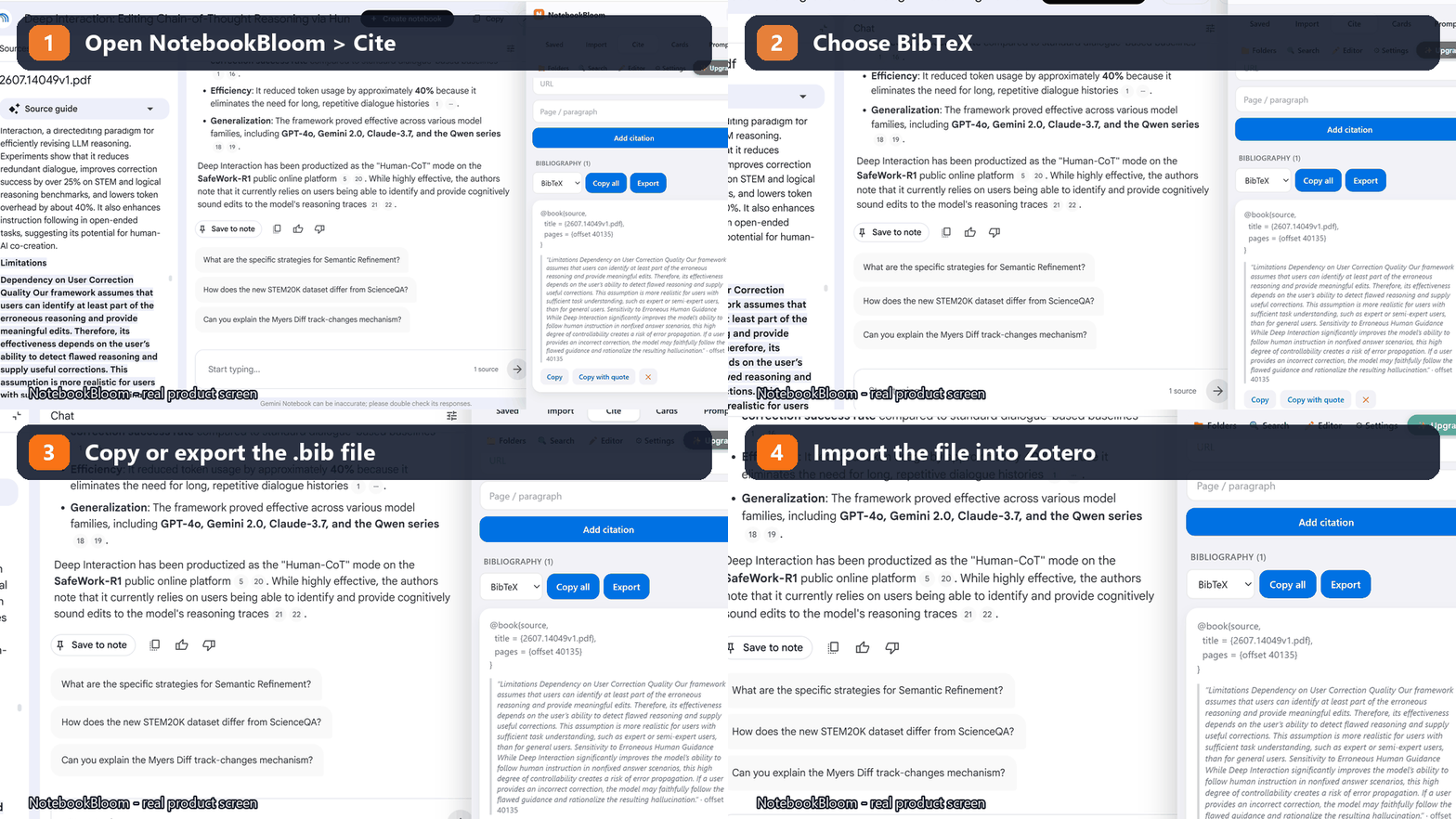
If you'd rather have formatted references than a .bib file, it also does APA, MLA and Chicago as plain strings — same source data, different output. I wrote a separate guide on the citation formats if that's what you're after.
Does this work with Gemini Notebook?
Yep. The NotebookLM → Gemini Notebook rename in July 2026 didn't add a Zotero button and didn't touch how sources work. So the gap is identical under both names, and the BibTeX route above works whether your tab says NotebookLM or Gemini Notebook.
If your sources and your citations have been living in two separate worlds, this is the seam. Get them into BibTeX once and Zotero does the rest — the way it always should have.
FAQ
How do I connect NotebookLM to Zotero?
There is no direct NotebookLM–Zotero connection, because NotebookLM (now Gemini Notebook) has no reference-manager integration. You connect them through BibTeX: export your NotebookLM sources as a .bib file, then in Zotero use File → Import. NotebookBloom generates that .bib in one click with de-duplicated keys, so the whole notebook lands in Zotero at once.
Does NotebookLM integrate with Zotero?
No. NotebookLM (now Gemini Notebook) has no Zotero integration, no Mendeley integration, and no reference-manager export of any kind. The bridge is BibTeX: export your sources as a .bib file and Zotero imports them cleanly.
How do I get NotebookLM sources into Zotero?
Export the sources as BibTeX, then in Zotero use File → Import → a .bib file. NotebookBloom generates that .bib for you with de-duplicated keys and proper fields, so the whole notebook lands in Zotero at once instead of being retyped by hand.
Does this work with Mendeley too?
Yes. Mendeley reads BibTeX (File → Import → BibTeX), and so do EndNote, RefWorks and Papers. The .bib format is the universal adapter — export once and it imports almost anywhere.
Will the metadata be correct?
It's only as good as what's in the source. Clean sources export cleanly; a scanned PDF with no readable title or author will still need a field tidied by hand — but you do that in Zotero after import, which is easier than editing a text file.
Official references
Product behavior can change. These official pages are the reference points used for this guide.
NotebookBloom is an independent extension and is not affiliated with Google. NotebookLM and Gemini Notebook are names for the same Google product; NotebookLM is a trademark of Google LLC.