Export NotebookLM Notes to Markdown & PDF
NotebookLM does not provide a native Markdown or PDF export. The manual routes are copying the output into a Markdown editor or using the browser's print-to-PDF function. NotebookBloom adds an editable view and exports the result directly as Markdown, PDF or HTML in the browser.
Here's a thing that surprised me the first time I tried to get work out of NotebookLM: your only official export destinations are Google Docs and Google Sheets. That's it. If you live in Markdown, or you just want a clean PDF to hand in or share, you're on your own. (This is one of several NotebookLM export limitations — here I'll focus on the Markdown and PDF side.)
NotebookLM — now Gemini Notebook since Google's July 2026 rename — is great atgenerating stuff: summaries, study guides, briefing docs. But the output is read-only inside the app, and the export menu only knows about Google's own formats. For a lot of us that's the wrong format at the wrong end of the workflow. I write in Markdown. My notes go into Obsidian. A Google Doc is a detour, not a destination.
The manual way (copy, paste, reformat, repeat)
Without a real export, here's the dance:
- Open the note or answer and select the text. You can't edit it in place, so you copy it out.
- Paste it into a Markdown editor. Now you fix the formatting — the headings, the bullet points, the bold that didn't survive the paste.
- Save as
.mdfor Markdown. - For a PDF, the trick that actually works is your browser's print dialog: Ctrl/Cmd + P → Destination: Save as PDF. It's not elegant but it gives you a real PDF without a Google Doc in the middle.
Do this for one summary and it's fine. Do it for a study guide with ten sections and you spend more time fixing formatting than reading the thing. And every AI answer you want to keep is another round of copy-paste-reformat.
Why "just use Google Docs" isn't the answer
People say export to Docs then download as whatever you need. You can, but Docs mangles Markdown — code blocks turn to mush, nested lists flatten, and you end up cleaning it up anyway. If your final home is Obsidian, Notion, or a static-site blog, routing through Google Docs adds a conversion step that loses structure instead of keeping it.
The one-click way
NotebookBloom exports notes and AI output straight to Markdown, PDF and HTML — no Google Doc detour. And because NotebookLM output is read-only, it does one extra thing first: it pulls the content into an editable view, so you can tidy or trim before you export instead of after.
- Markdown — clean
.mdwith headings and lists intact, ready for Obsidian or Notion. - PDF — a formatted PDF in one click, no print dialog gymnastics.
- HTML — for pasting into a blog or sharing as a page.
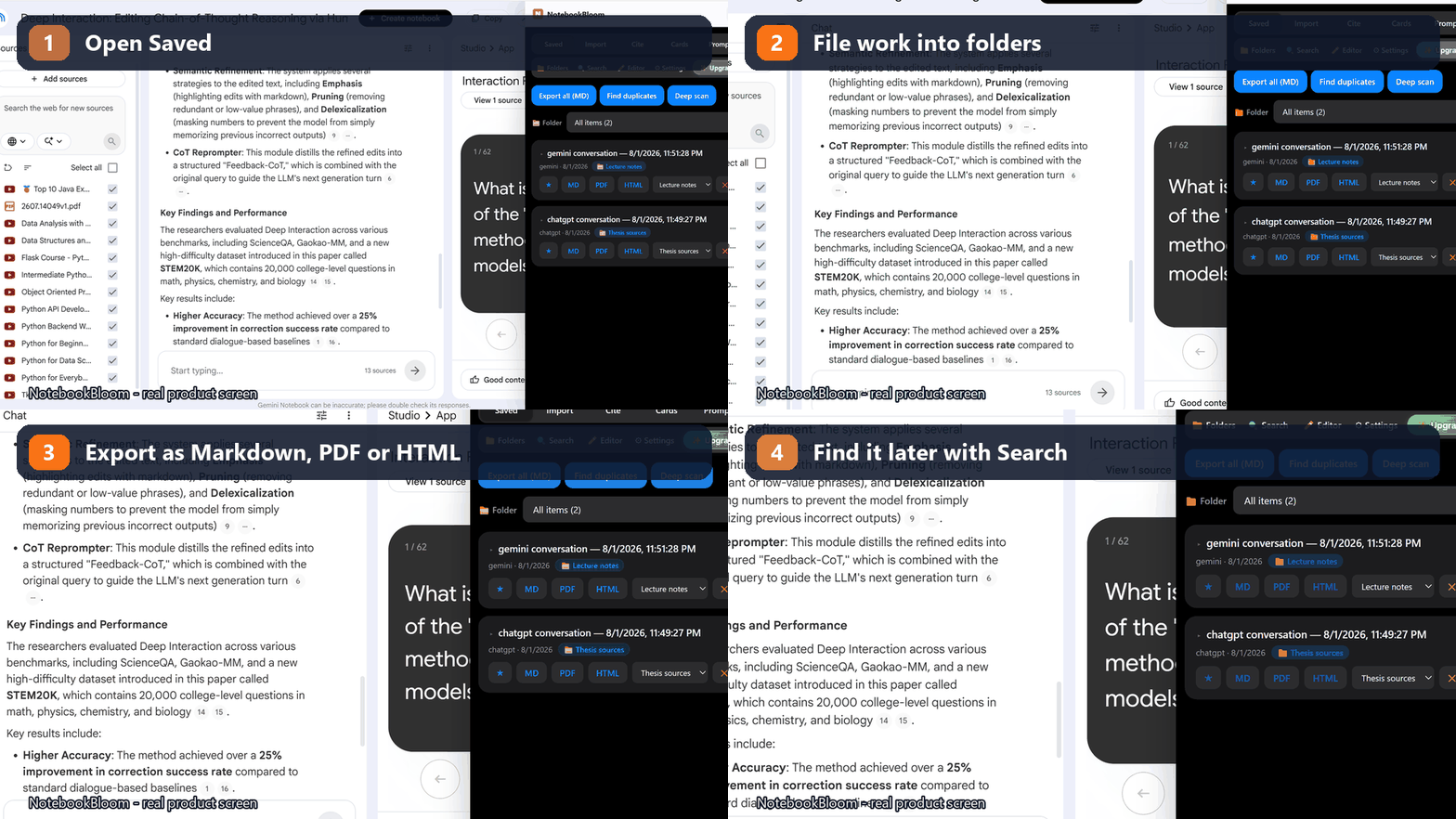
The editable-first part is the bit I use most. NotebookLM gives you a wall of read-only text; pulling it somewhere I can actually cut a paragraph before exporting turns out to matter more than I expected.
NotebookLM or Gemini Notebook — same limitation?
Same limitation, same fix. The July 2026 rename to Gemini Notebook didn't add Markdown or PDF export — native export still points at Google Docs and Sheets. So whether your tab says NotebookLM or Gemini Notebook, the export gap is there, and everything above works the same.
Research isn't done when the AI answers — it's done when the answer is in your tools, in a format you can actually use. Skip the Google Doc detour and put it where it belongs.
Getting the notes out is half of it; getting the references out is the other half. If you also need a bibliography, see how to export NotebookLM citations to APA, MLA and BibTeX or push your sources straight into Zotero.
FAQ
Can NotebookLM export to Markdown or PDF?
Not natively. NotebookLM (now Gemini Notebook) only exports to Google Docs and Google Sheets, and its output is read-only. NotebookBloom exports notes and AI answers straight to Markdown, PDF and HTML in one click — no Google Doc detour.
How do I export a NotebookLM note as a PDF?
The native trick is your browser's print dialog (Ctrl/Cmd + P → Save as PDF). For a cleaner result, NotebookBloom exports a formatted PDF directly, and can also pull the read-only note into an editable view first so you can trim it before exporting.
Can I download my original source files (PDFs) from NotebookLM?
No — and no extension can. NotebookBloom exports your notes, AI answers, citations and flashcards, not the original uploaded source files. Downloading source PDFs isn't something NotebookLM exposes. Keep your own copies of files you upload.
Does exporting upload my notes anywhere?
No. The Markdown, PDF and HTML are generated locally in your browser — your notes aren't sent to a server to be converted.
Official references
Product behavior can change. These official pages are the reference points used for this guide.
NotebookBloom is an independent extension and is not affiliated with Google. NotebookLM and Gemini Notebook are names for the same Google product; NotebookLM is a trademark of Google LLC.