How to Bulk Import Multiple Sources into NotebookLM
NotebookLM does not natively batch-import a list of website URLs, a YouTube playlist or an RSS feed. Without an extension, add those web sources one at a time. NotebookBloom turns the list into one import queue while still respecting Google's source limit for the notebook.
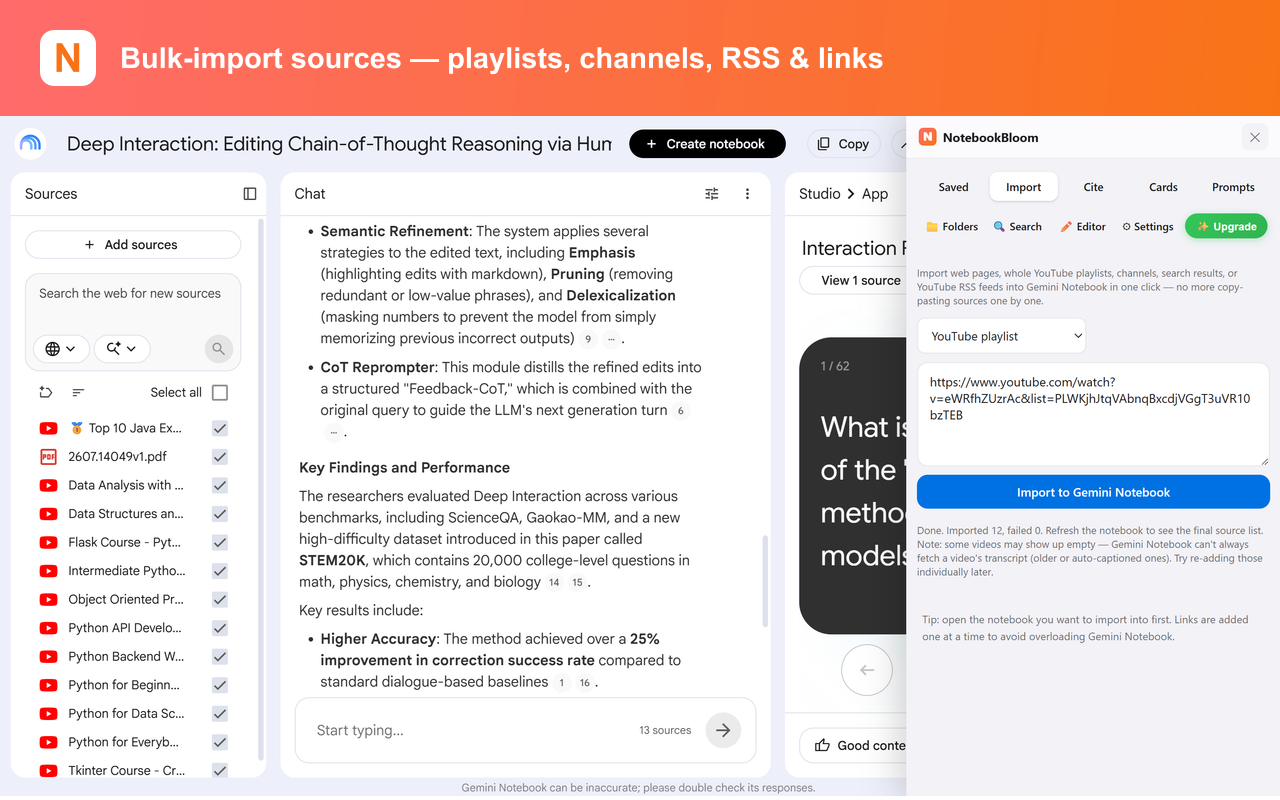
The fastest way to feel how much manual work NotebookLM asks of you is to try to add a YouTube playlist. Twenty videos, one course. Natively, that's twenty trips through the "Add source" box, one link at a time, waiting for each to process. I did it once. Once was enough.
NotebookLM — Gemini Notebook after the July 2026 rename — makes you add website sources individually. That is manageable for two links. It is the wrong workflow for a reading list, a course playlist or a feed with twenty articles.
The manual way (the one-link-at-a-time grind)
For bulk adding, the honest native workflow is:
- Open Add sources.
- Paste one URL. Wait for it to fetch and process.
- Repeat. For a playlist, open each video, copy its link, paste, wait — for every single one.
Uploaded files can be selected together in the file picker, but web URLs, videos and feeds are where the repetitive work shows up. Keep the source cap in mind: importing faster does not raise Google's per-notebook limit.
The RSS trick, and where it stops
One half-workaround worth knowing: YouTube gives every channel a hidden RSS feed, so if you can get the feed URL you can sometimes collect recent videos in bulk. It is clever, but fiddly, and only covers recent uploads. It is useful as a source list, not a complete import workflow.
The one-click way
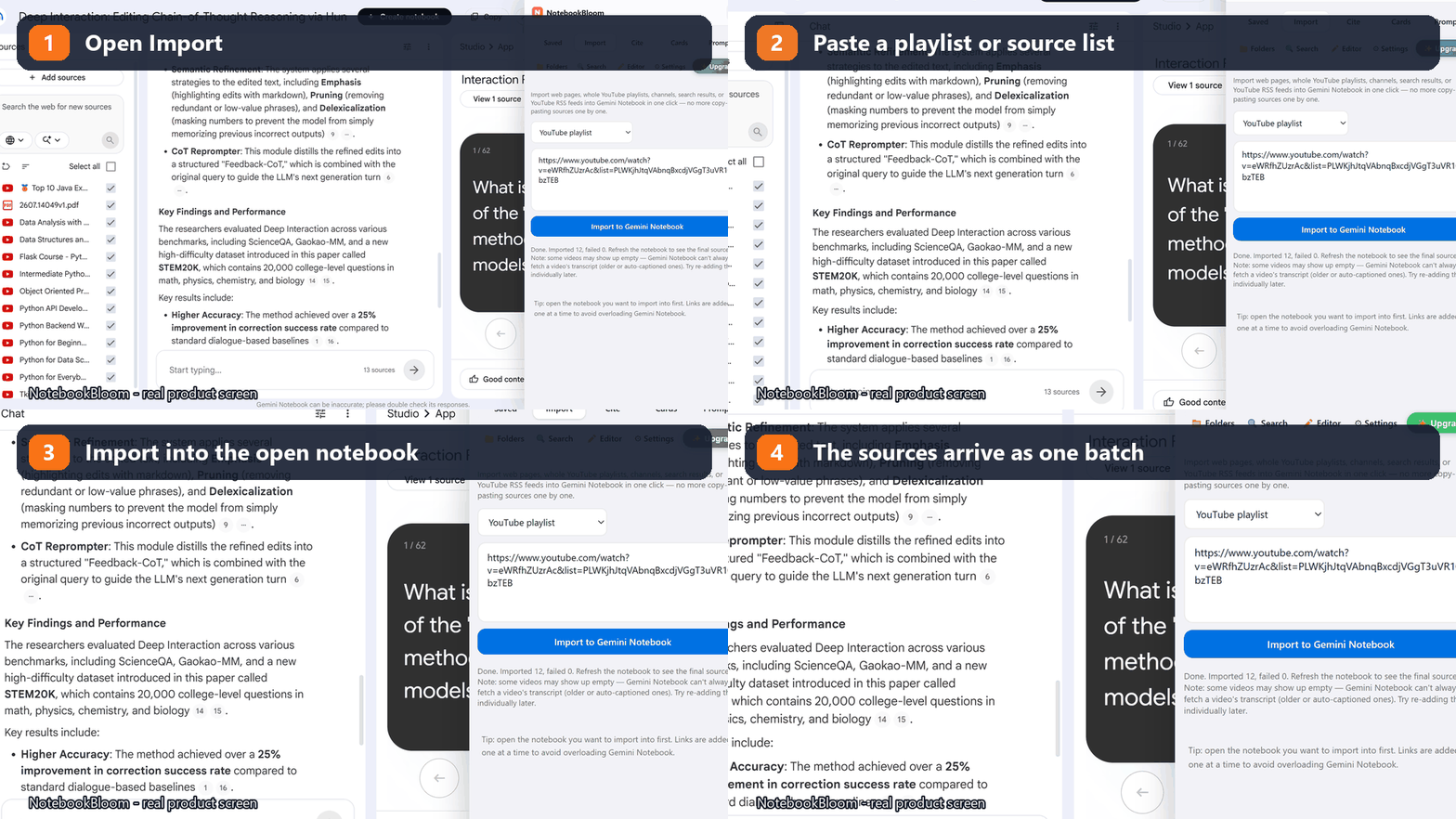
NotebookBloom turns the source list into one import queue instead of making you repeat the same dialog.
Bulk import:
- Paste many URLs at once and add them all in a single pass.
- Drop in a whole YouTube playlist, channel, or search results — every video becomes a source, no video-by-video copying.
- Import an RSS feed to pull a batch of articles in together.
- Rebuilding a notebook? The same paste re-adds every source at once — the fast way to copy a notebook NotebookLM won't let you duplicate.
Need folders after the import?
Bulk import solves how sources get into a notebook; it does not solve a crowded notebook library. For that separate problem, use the NotebookLM folders and tags workflow, then pair it with cross-notebook search.
Does this change under Gemini Notebook?
No. The July 2026 rename to Gemini Notebook didn't add bulk URL, playlist or feed import — web sources still go in one at a time. The same workflow applies whether your tab says NotebookLM or Gemini Notebook.
The setup phase of research shouldn't be the tedious part. Get the source list in quickly and spend the saved hour on the actual reading.
FAQ
Can I bulk-import sources into NotebookLM?
Not natively — NotebookLM (now Gemini Notebook) makes you add sources one link at a time. NotebookBloom lets you paste many URLs at once, or import a whole YouTube playlist, channel, search results or RSS feed in a single pass.
Can I import a whole YouTube playlist or channel?
Yes, with NotebookBloom. Paste a playlist, channel or search-results URL and every video becomes a source — no video-by-video copying. You can also import an RSS feed to pull in a batch of articles at once.
Can I import multiple website URLs at once?
NotebookLM's native interface handles website links one at a time. With NotebookBloom, paste a newline-separated list of URLs and process the batch together, while still respecting Google's source limit for the notebook.
Can I duplicate or copy a whole notebook?
No — neither NotebookLM nor NotebookBloom can clone an entire notebook; NotebookLM has no duplicate-notebook feature and doesn't expose one to extensions. What NotebookBloom does help with is getting sources in fast (bulk import) and organizing them (folders and tags).
Does bulk import get around NotebookLM's source limits?
No. Bulk import still respects NotebookLM's own per-notebook source limits — no extension can raise those. It removes the manual repetition of adding sources, not Google's underlying caps.
Official references
Product behavior can change. These official pages are the reference points used for this guide.
NotebookBloom is an independent extension and is not affiliated with Google. NotebookLM and Gemini Notebook are names for the same Google product; NotebookLM is a trademark of Google LLC.